
Headshot Aspect Ratio Guide: Best Ratios for Every Use
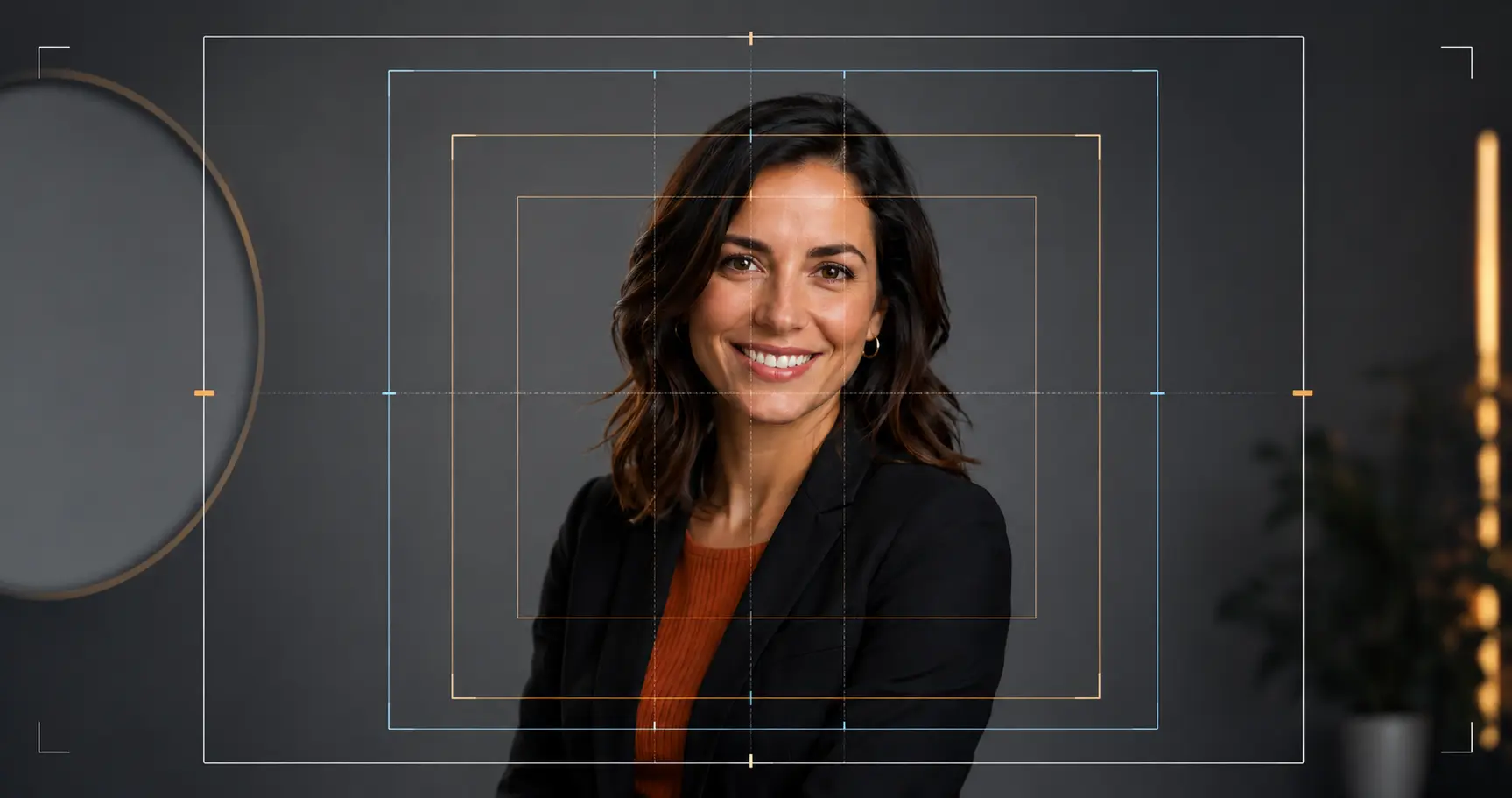
For most professional headshots, 1:1 (square) is the safest default — it works on LinkedIn, Slack, Zoom, and nearly every platform that displays profile photos as circles. When you need a more polished portrait for a company website or executive bio, 4:5 or 3:4 adds vertical presence without sacrificing compatibility.
The rest of this guide breaks down exactly when to use each ratio, what pixel dimensions actually matter, and how to crop and export your headshot correctly the first time.
What aspect ratio means for headshots
An aspect ratio is simply width:height expressed as the simplest whole-number relationship. A 1000 × 1000 px image is 1:1; an 800 × 1000 px image is 4:5. The ratio determines how much face, neck, and shoulder area fits in the frame — and whether your photo will look cropped, squeezed, or perfectly balanced when a platform resizes it.
Because platforms range from tiny circular profile icons (LinkedIn, Slack) to tall portrait cards (company bio pages) to horizontal team grids, there is no single ratio that is perfect for every context. The practical approach is to shoot or generate with a small amount of extra headroom, then crop to the target ratio for each use.
The three ratios that cover almost every professional use case
1:1 — The universal profile photo ratio
Use it for: LinkedIn, Slack, Microsoft Teams, Zoom, email signatures, most social media profiles, ATS / applicant-tracking systems, and any context where you do not know how the image will be displayed.
A square gives equal headroom and shoulder space, which means it survives circular cropping without cutting off your chin or forehead. Compose the shot so your eyes land roughly one-third from the top of the frame and there is at least 10–15% empty space between the top of your head and the edge of the image.
Recommended export size: 1000 × 1000 px at 72 dpi for web; 400 × 400 px minimum for most profile photos. You can quickly resize to any platform requirement with the FastHeadshot photo resizer.
4:5 — The polished portrait ratio
Use it for: Corporate website bios, executive team pages, press kits, Instagram portrait posts, and modern business cards.
At 4:5 the frame is taller than it is wide, giving the subject a dignified, editorial look that reads well at the large sizes company websites often use. It is the closest standard ratio to what a camera produces in portrait orientation, so professionally photographed headshots often default here.
Recommended export size: 800 × 1000 px or 1200 × 1500 px. If your company website shows team photos in a uniform grid, check whether it expects 4:5 or 3:4 before cropping — see the guide to headshots for company websites for layout-specific tips.
3:4 — The traditional professional ratio
Use it for: University faculty directories, hospital and medical staff pages, government employee profiles, research institution bios, and printed materials such as conference programs or name tags.
The 3:4 ratio has a long history in portrait photography (it matches a 4×6 inch print at standard proportions) and remains the default for many institutional content management systems. It is slightly taller than 4:5 and gives a more formal, traditional feel.
Recommended export size: 600 × 800 px, 900 × 1200 px, or 1500 × 2000 px.
Quick-reference table
| Use case | Recommended ratio | Typical pixel size |
|---|---|---|
| LinkedIn profile | 1:1 | 400 × 400 px minimum |
| Slack / Teams / Zoom | 1:1 | 512 × 512 px |
| Email signature | 1:1 | 100–150 × 100–150 px |
| Company website bio | 4:5 or 3:4 | 800 × 1000 px |
| Executive / press kit | 4:5 | 1200 × 1500 px |
| University / medical staff | 3:4 | 600 × 800 px |
| Instagram portrait post | 4:5 | 1080 × 1350 px |
| Resume (digital) | 1:1 or 3:4 | 200 × 200 px or 300 × 400 px |
| Print (conference / name tag) | 3:4 or 3:2 | 300 dpi at target size |
| Acting / modeling portfolio | 2:3 | 800 × 1200 px |
Other ratios you may encounter
2:3 is the native output ratio of most DSLR and mirrorless cameras (a 3:2 sensor rotated to portrait). It appears often in acting headshots, modeling portfolios, and entertainment industry submissions because photographers hand over files without cropping.
16:9 is not a headshot ratio — it is a video or banner format. If you need to place a headshot inside a 16:9 graphic (a slide deck background, a webinar title card), crop the headshot to 1:1 first and then position it within the wider frame rather than stretching the portrait to fill it.
Ratios to avoid for headshots: 9:16 (vertical video), 21:9 (cinematic widescreen), and any ratio wider than 3:2. These cause awkward framing that cuts off the top of the head or leaves excessive empty space on the sides.
How to crop and export correctly
Keep the eyes in the upper third
Regardless of ratio, position the eyes roughly one-third of the way down from the top. This creates visual balance and ensures the face is the focal point rather than the forehead.
Leave enough safe zone around the head
Many platforms apply circular masks or automatic face-detection crops. Leave at least 10% of the frame as empty space on each side of the head so the face is never clipped when the platform re-crops.
Match the required pixel dimensions, not just the ratio
Two images can both be 1:1 but 200 × 200 px versus 1000 × 1000 px. Always check the minimum and recommended pixel size for your specific platform. LinkedIn's current recommendation for profile photos is at least 400 × 400 px; for the best clarity at full size, upload 1000 × 1000 px or larger.
Export as JPEG for photos, PNG if you need transparency
JPEG at 80–90% quality keeps file sizes manageable (under 8 MB, which is LinkedIn's upload limit) while preserving enough detail for a clean-looking profile photo. Use the image size reducer to compress without visible quality loss before uploading.
Use the right tool for the job
- To crop any image to a specific ratio: FastHeadshot image cropper
- To create a circular crop for LinkedIn or other round profile icons: circle crop tool — also see the dedicated guide to circle-cropping your LinkedIn profile picture
- To resize to exact pixel dimensions: photo resizer
If you are starting from scratch and want a headshot that is already properly composed for any ratio, the AI headshot generator outputs balanced portraits with safe headroom built in.
Getting a headshot that works before you crop
Cropping is easier when the source photo is well-composed. Whether you are taking a photo yourself or using an AI generator, these three things determine how well a headshot adapts to different ratios:
Framing: The head and upper shoulders should occupy 60–75% of the frame height. Too tight and cropping to a wider ratio will cut shoulders; too loose and the face appears small after circular cropping.
Neutral background: Solid or softly blurred backgrounds let you crop tightly without awkward visible edges. Busy or asymmetric backgrounds can look strange when the frame changes shape.
Consistent lighting: Bright, even lighting on the face holds detail at small sizes. Dark or moody lighting can look great at full size but turns muddy when compressed to a 100 px profile icon.
For practical shooting advice, see how to take a professional headshot or how to take a great headshot at home. If you specifically need a LinkedIn-ready result, the LinkedIn headshot guide covers both DIY and AI options side by side.
FAQ
What is the best headshot aspect ratio for LinkedIn?
1:1 (square). LinkedIn displays profile photos as circles, and a square crop provides the most headroom for the circular mask. Upload at 1000 × 1000 px for the sharpest display.
Can I use one headshot for every platform?
Yes, if you start with a high-resolution 1:1 image that has sufficient space around the head and shoulders. From a 1000 × 1000 px square you can crop to 4:5 or 3:4 without losing the face, provided the original was not framed too tightly.
My headshot is 3:2 (landscape). Can I use it for professional profiles?
Landscape ratios are not well-suited to headshots — they show too much background relative to the face and do not display cleanly as circular thumbnails. Crop to 1:1 by using the image cropper and centering on the face.
What pixel size should I export for a company website?
This depends on your site's layout, but 800 × 1000 px (4:5) or 600 × 800 px (3:4) at 72 dpi is a practical starting point for most web layouts. If the site uses retina / high-DPI displays, double the pixel dimensions and compress with the image size reducer to keep the file size reasonable.
Does aspect ratio affect how AI headshot generators work?
It depends on the tool. FastHeadshot generates portraits with balanced, platform-safe framing so the output works well at 1:1, 4:5, or 3:4 without significant recomposition. If you need a specific ratio, crop the generated image using the tools linked above rather than stretching it, which would distort proportions.
Ready to generate a headshot that looks great at every ratio? Try the FastHeadshot AI generator — professional results in under a minute, no photographer required.
Related articles
AI Headshot Prompts: Write Better Prompts for Pro Results
Learn the exact 4-part formula for writing AI headshot prompts that produce studio-quality results. Includes copy-paste examples for every industry.
AI vs Traditional Headshots: Cost & Quality Compared
Comparing AI headshots vs traditional photography on cost, quality, speed, and professional perception — so you can choose the right option for your needs.
How to Take a Great Headshot at Home
Step-by-step guide to taking a professional headshot at home using window light, your phone, and household items. No studio required.